How to Access Gemini with your FIT Account
Instructions
IMPORTANT: Protect Privacy and Intellectual Property
Use of AI through non-enterprise accounts may result in public data exposure. FIT bears no responsibility whatsoever for potential claims or losses resulting from individuals entering, posting, sharing and/or linking their intellectual property or copyrighted content to or in either a public generative-AI text prompt, such as the consumer versions of Gemini, Copilot, or ChatGPT, or a public gallery, such as Adobe Firefly Gallery. Any public entering, posting, sharing and/or linking of confidential or protected information maintained by FIT may also violate FIT policies, as well as state and federal laws.
- Sign into your FIT Google Workspace account
- Click on the Google apps icon (Bento box)
Select Gemini
Check which account you’re using
You can see which account you’re using by looking at the image in the top right corner in Google Gemini.
If you open Google Gemini while not signed in, you can still use the service but you won’t have the same security protections, data safeguards, or access to FIT resources as you would with your FIT Google Account. (See Protect Privacy and Intellectual Property for more details)
If you use multiple Google accounts (for example, your FIT account and a personal one), use a different profile photo for each to help you quickly tell them apart.
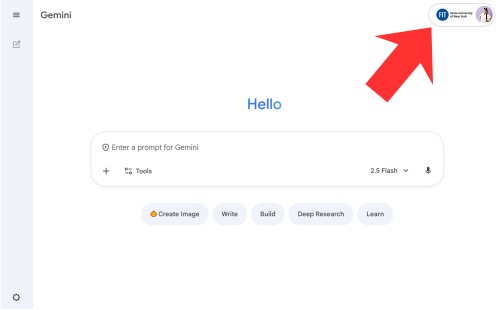
Sign-in indicators for each account type
Check these indicators to make sure you’re signed in with the correct Google account.

Not Signed In

FIT Google Account

Non-FIT Google Account
How to connect Google Workspace apps to Gemini
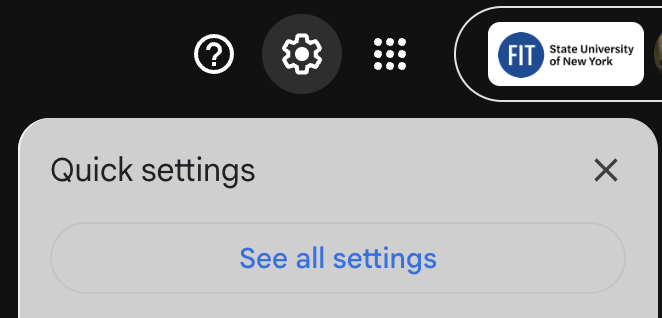
1. In Gmail, go to Settings (Cog/Gear Icon), then select ‘See all settings.’
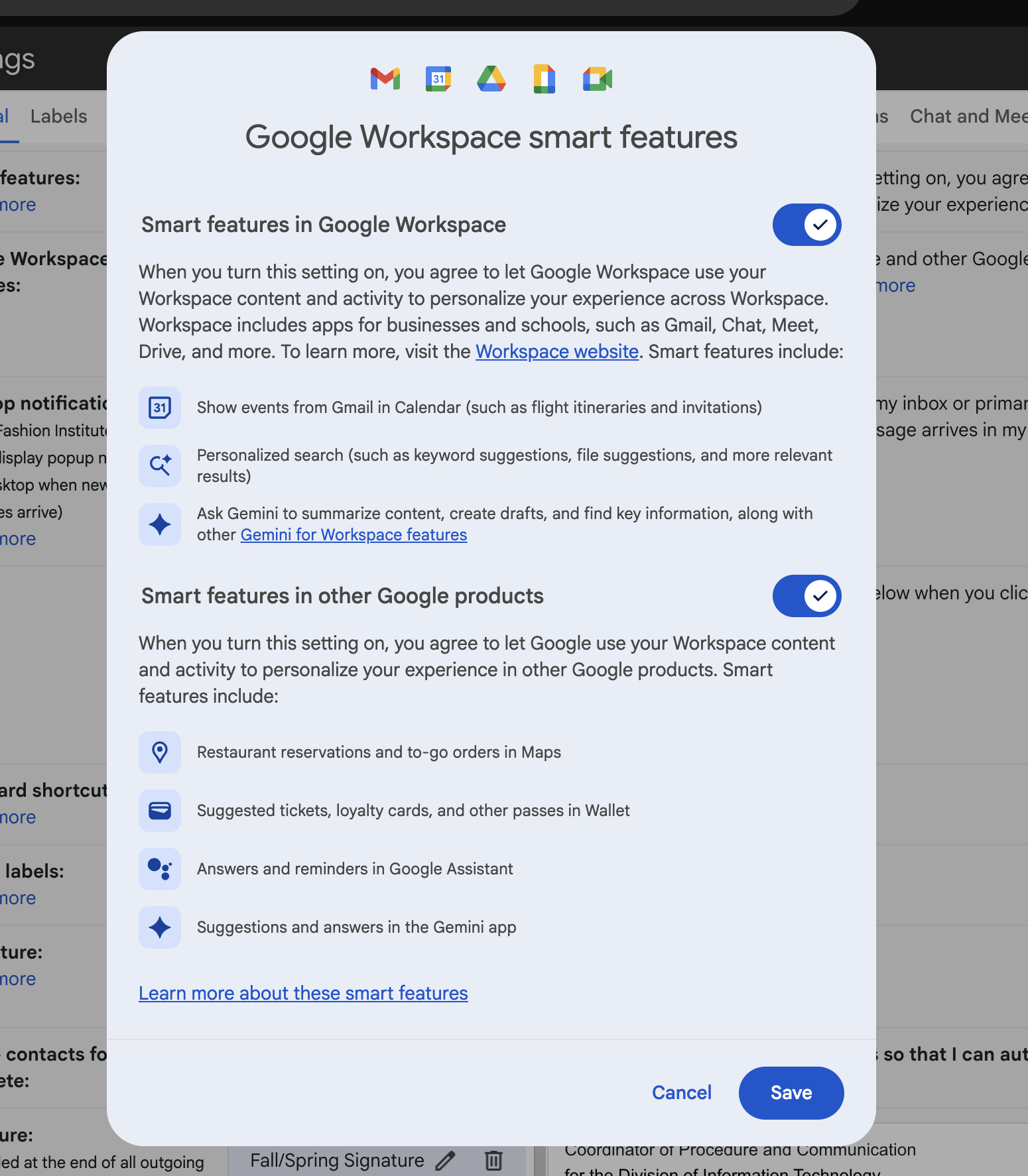
2. Under ‘General’ scroll until you find ‘Google Workspace smart features:’ and click the ‘Manage Workspace smart feature settings’ button.

3. Slide the toggles from off to on, then click the ‘save’ button.
4. Return to Gemini, click on Setting (Cog/Gear/Sun) icon. Select ‘Apps’ from the menu.

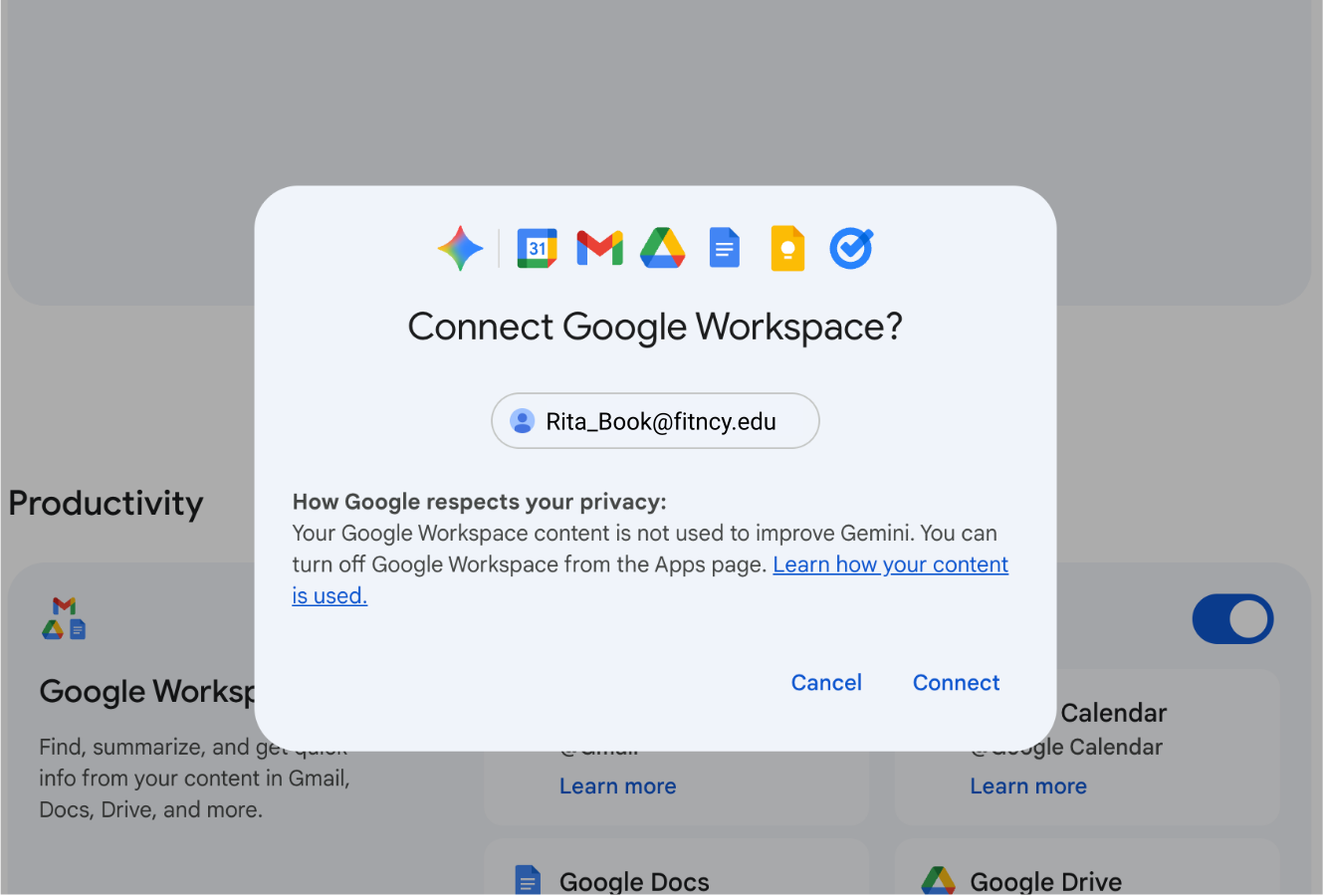
5. Under ‘Productivity’ slide the toggle on.
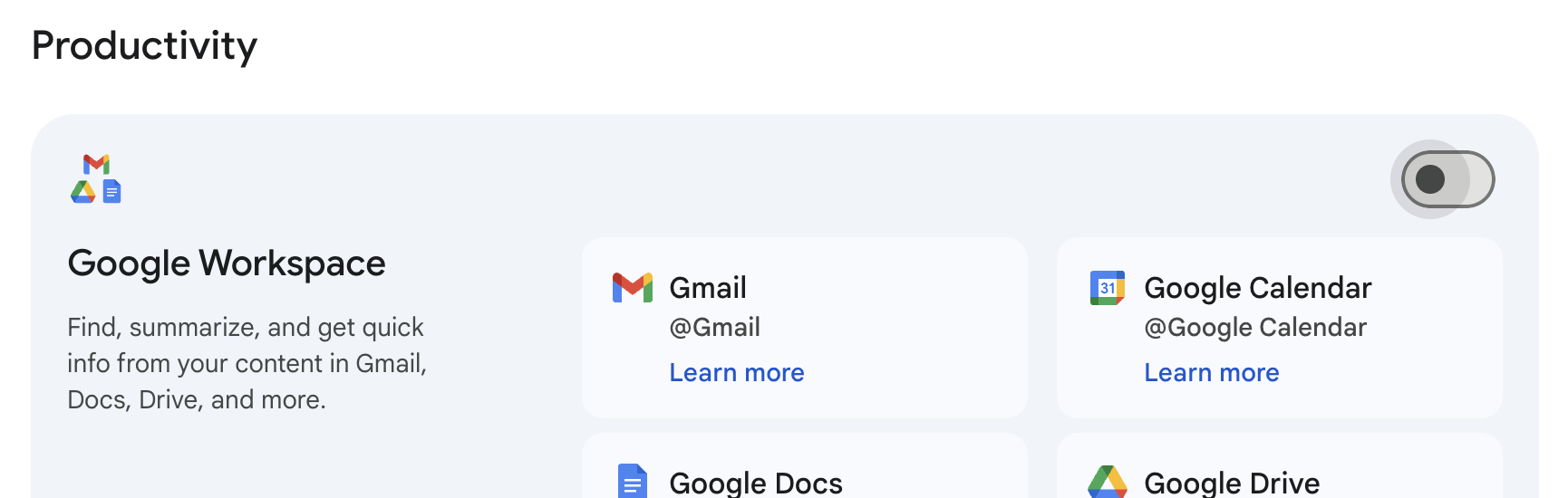
6. Click ‘Connect’