How to Add or Update Your Microsoft Multi-Factor Authentication (MFA) Methods
Instructions
Security Recommendation
The Microsoft Authenticator app provides the strongest protection for your account, and it should remain your primary sign-in method. With the app’s default settings, you must unlock your phone and confirm the request, which creates a built-in layer of security that other methods cannot match.
While adding a backup option is helpful, adding too many backup methods can increase your risk, since each additional method creates another potential path for someone to attempt unauthorized access. For the best balance of security and accessibility, we recommend:
- Use the Microsoft Authenticator App as your primary method
- Add only one secondary recovery option
This keeps your account protected while still giving you a safe fallback if you need it.
When to Use These Settings
Use the Security Info page when you:
• Upgrade or replace your phone and need to reconnect the Microsoft Authenticator app
• Want to add a backup method (such as a phone number) in case you don’t have access to the app
• Need to update a number or remove outdated methods
• Need to sign out of all active sessions for security reasons
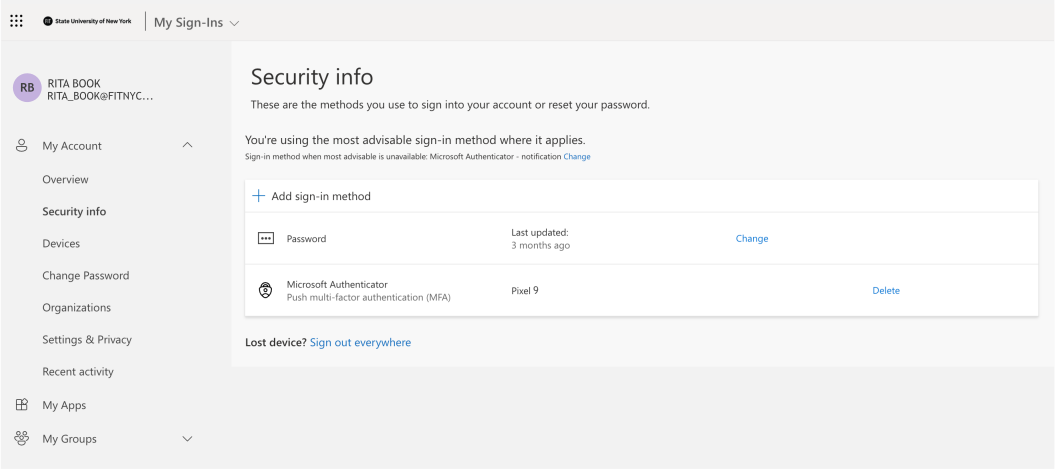
Accessing Your Security Info Page
If you are a new user and have not completed registered for Self-Service Password Reset. Please follow our instructions How to register to use Self-Service Password Reset (SSPR) and Microsoft Multi-Factor Authentication.
-
Sign in with your FIT email address and password.
-
You’ll see a list of all authentication methods currently registered on your account.
Adding a New Sign-In Method
Tip: Adding at least two methods (such as phone and Authenticator app) gives you more flexibility if one option isn’t available. If you are a new user and have not completed registered for Self-Service Password Reset. Please follow our instructions How to register to use Self-Service Password Reset (SSPR) and Microsoft Multi-Factor Authentication.
- Follow the steps under “Accessing Your Security Info Page” above.
- Select + Add sign-in method.
- Choose the method you’d like to add (Authenticator app, phone call, alternate phone, or ).
- Follow the on-screen steps to complete setup for the new method.
- Once added, it will appear in your list of available options.
Deleting a Method
If you no longer use a method, you can remove it.
-
Find the method you want to delete.
-
Select Delete.
-
Confirm the deletion.
Note: You must have at least one valid method on your account at all times.
Signing Out Everywhere
If you believe your account may have been accessed on a device you no longer use, you can sign out of all active sessions.
-
On the Security Info page, select Sign out everywhere.
-
Confirm the action.
-
You’ll be required to sign in again on all devices.