How to Access M365 Copilot with your FIT Account
Instructions
IMPORTANT: Protect Privacy and Intellectual Property
Use of AI through non-enterprise accounts may result in public data exposure. FIT bears no responsibility whatsoever for potential claims or losses resulting from individuals entering, posting, sharing and/or linking their intellectual property or copyrighted content to or in either a public generative-AI text prompt, such as the consumer versions of Gemini, Copilot, or ChatGPT, or a public gallery, such as Adobe Firefly Gallery. Any public entering, posting, sharing and/or linking of confidential or protected information maintained by FIT may also violate FIT policies, as well as state and federal laws.
M365 Copilot versus Copilot
Microsoft 365 Copilot uses your FIT account and follows enterprise security, compliance, and data-protection rules. Its answers can draw on your work files, email, and calendar because they stay inside the protected FIT environment.
Copilot does not use FIT’s protections. It relies on public web data and personal-account settings, and it cannot access or safeguard FIT information the same way.

How to verify your are signed into your FIT Account for M365 Copilot
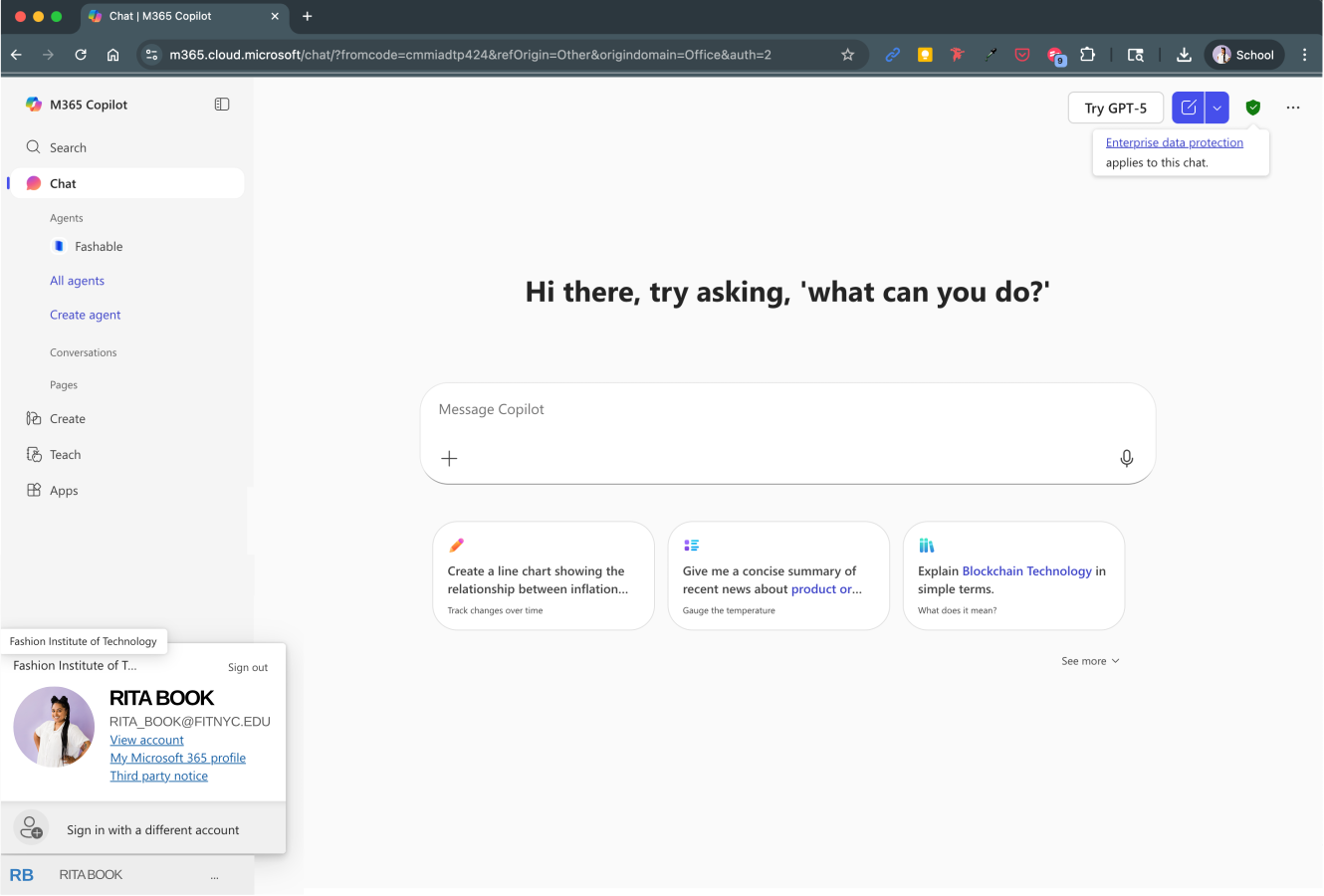
- The Green Shield icon in the upper-right hand corner indicates Enterprise data protection.
When you click on your profile photo in the bottom-left corner you will be able to see the following details to confirm you are signed into your FIT account:
- Your FIT email address under your Profile Name
- “Fashion Institute of Technology” listed above your profile photo
If the URL is Copilot.com then you are not using your FIT account. The enterprise version of Copilot is M365 Copilot.
Note: to see all details you may need to click on the “Expand Navigation” icon located in the top left of the screen.