How to sign in to Finance Enterprise
IT Service article relates to:
This article is intended for:
Staff
Last Updated:
Instructions
Browsers:
Chrome = Preferred Browser
IE = Alternative Browser
Edge = Not supported
1. Log in to MyFIT
2. Navigate to the Finance Enterprise card (if you do not see it perform a search and bookmark the card for future use).
3. Click on Finance Enterprise

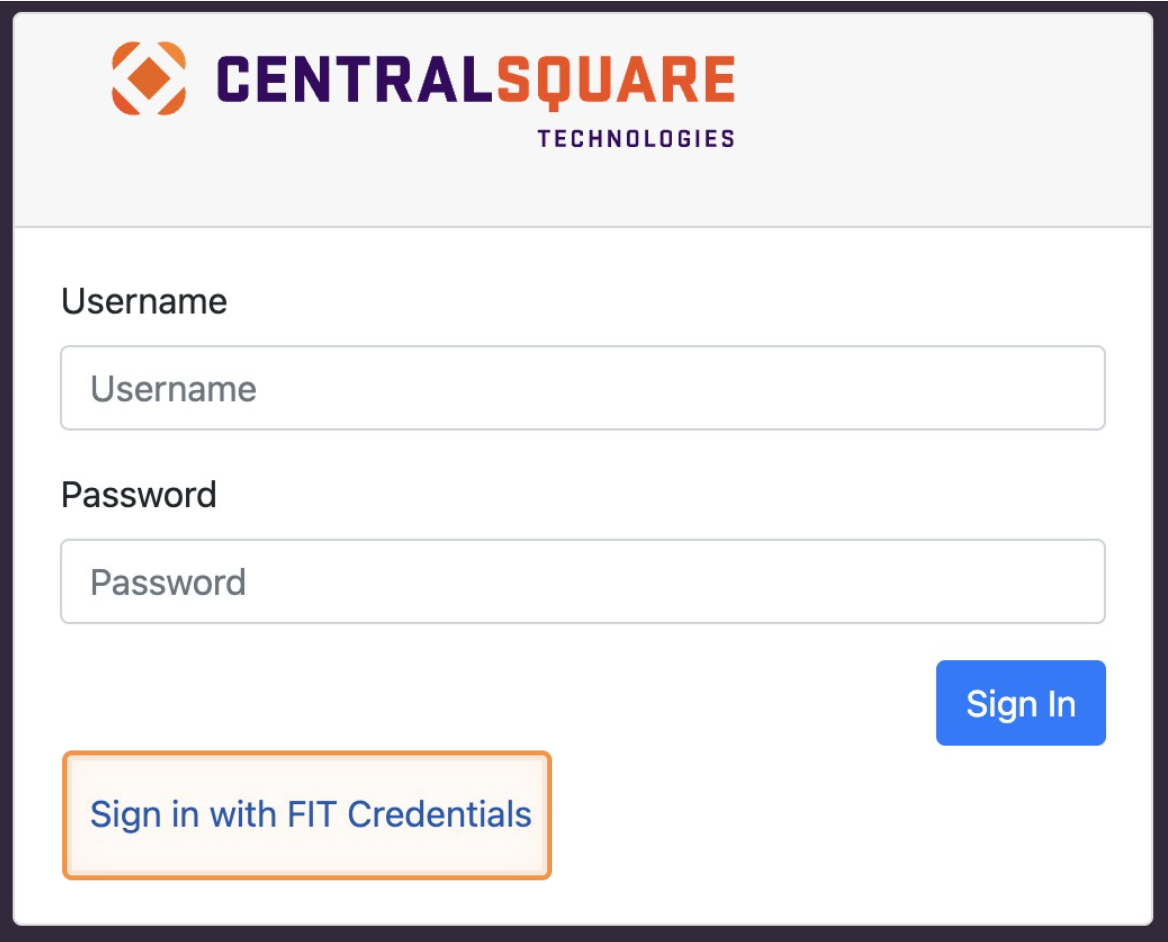
4. The Finance Enterprise log in screen will load.
Click on “Sign in with FIT Credentials
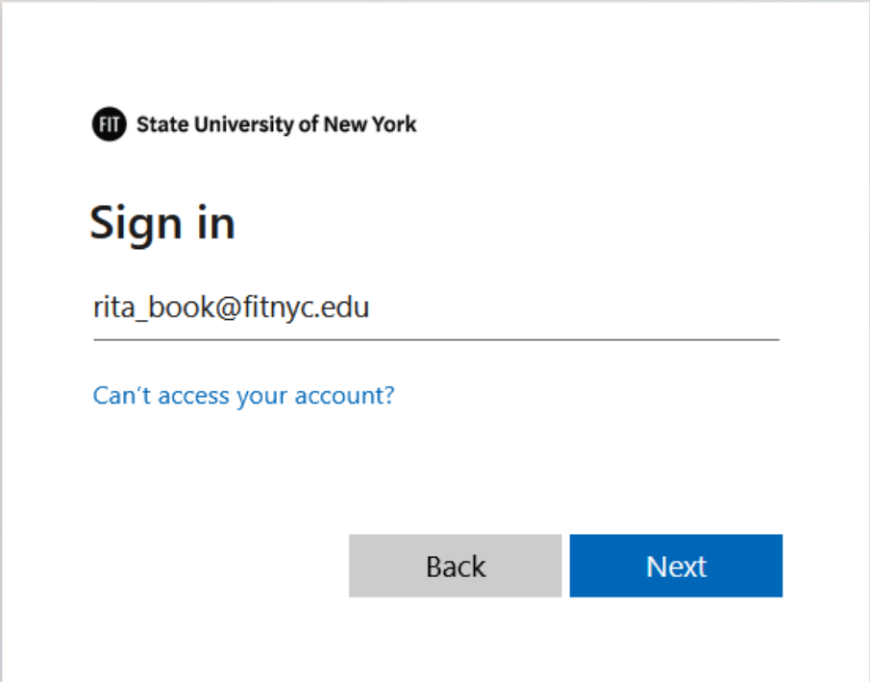
5. Complete the FIT Sign-in Process
- Enter your FIT Email and click next.
- Enter your FIT Password and click Sign in
- Verify your identity with your selected multi-factor authentication method.
6. If you log in and the Main Window is blank, click on the logo in the Top Banner. The page will refresh, and the Main Window and Navigation panel should appear.
