FIT Email Protection User Guide Spam Protection, Email Warning Tags, URL and Attachment Defense
Topics covered in this article:
- FIT End User Spam Digest – Protects from spam and phishing emails
- FIT Email Warning Tags – Provides insights and warnings for external emails that are potentially malicious
- FIT URL Defense and Attachment Defense – Protects from malicious websites/links and attachments
1. FIT End User Spam Digest
FIT uses an email security system to filter spam, phishing, and malicious messages before they reach your inbox. When a message is suspected to be spam, it is placed in quarantine and included in the FIT End User Spam Digest.
The Spam Digest is a daily summary email that allows you to review messages that were blocked and release any message that you believe is legitimate.
What is the FIT End User Spam Digest?
The FIT End User Spam Digest is an email sent to you daily that lists messages identified as potential spam and placed in quarantine.
The digest allows you to:
- Review the sender and subject of quarantined messages
- Release a quarantined message to your inbox
- Release the message and allow the sender so that the messages from the sender do not get quarantined in the future
- Block the sender
The digest lists new messages quarantined since the previous digest was sent.
What can you do with the FIT End User Spam Digest email?
Opening the End User Digest email displays a list of suspected spam messages. Messages are organized into two categories:
- Bulk Emails – Bulk emails typically include announcements, newsletters, or other large-scale communications that are solicited or for which the recipient may have given some level of consent – implicit or explicit.
- Spam – Potential phishing, unsolicited, irrelevant, or malicious emails for which the recipient may not have given any consent.
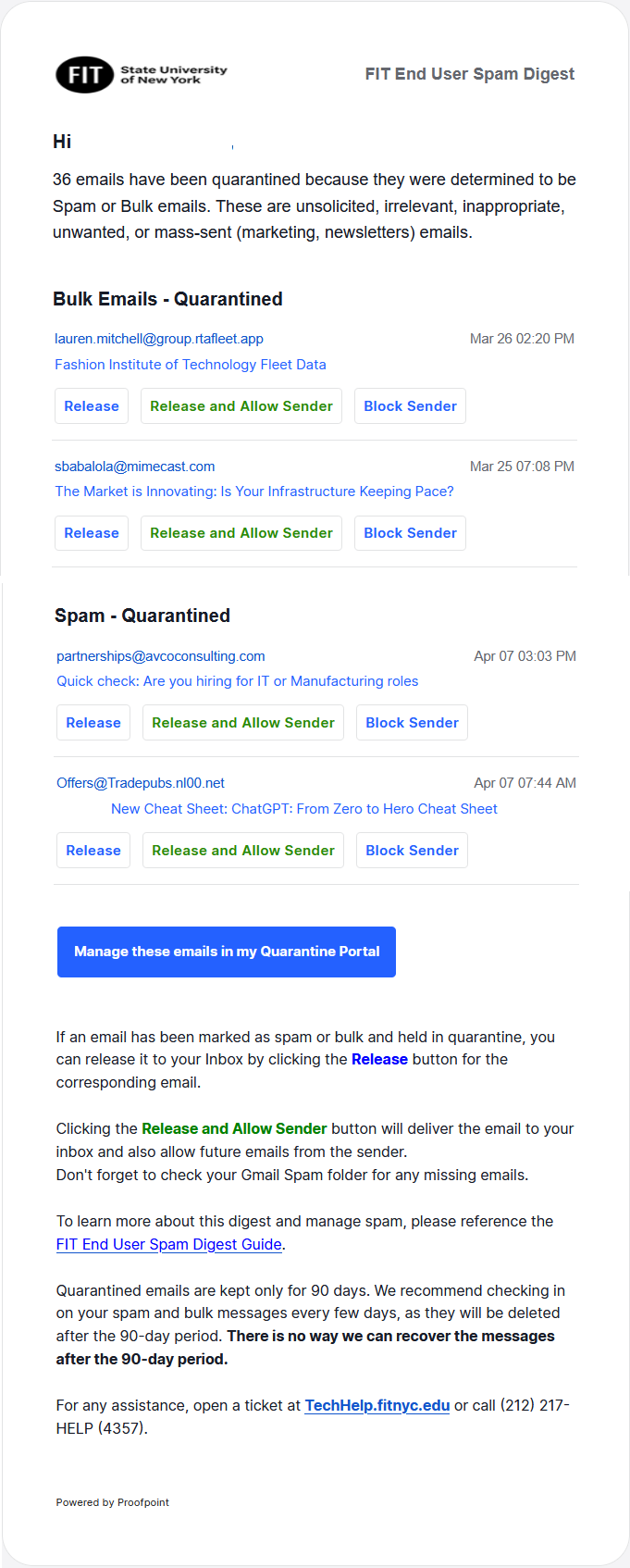
From here you can select how you want to manage the email. You have several options to choose from.
- Release – releases the email from quarantine and delivers it to your inbox. (Note: there is a possibility that released emails may get placed in the Spam folder. If you do not see the released email in your inbox, check your spam folder.)
- Release and Allow Sender – releases the email and allows all future emails from this sender to your inbox.
- Block Sender – blocks all future emails from this sender to your inbox.
While these three options provide sufficient functionality, you may occasionally need to use an additional option at the bottom of the End User Spam Digest email.
- Manage these emails in my Quarantine Portal – opens a web page that accesses your account on the Protection Server. You may view quarantined messages, access your safe/blocked senders list, and perform other management functions. For more details, please refer to the Manage these emails in my Quarantine Portal Section in this document.
Note: When you add a domain name (e.g., buffalo.edu) to the Safe Senders list, all email addresses from that domain will be considered “safe” for your email account. If you are not sure, you should restrict the safe list to specific senders by entering their full email addresses (for example, [email protected]).
Quarantined emails are kept only for 90 days. We recommend checking in on your spam and low-priority messages every few days, as they will be deleted after the 90-day period. There is no way we can recover the messages after the 90-day period.
FIT End User Spam Digest – Web App
The following screenshots show how the End User Web interface may appear to you and illustrate some of the functions it supports. To launch the Web Application:
- Click the Manage these emails in my Quarantine Portal link in the FIT End User Spam Digest email.
- The Web Interface integrates with FIT Single Sign-on, so the login process remains the same.
After you log in to the End User Web interface, you can decide how to handle future messages from each sender:
- Release the selected message(s) from the Quarantine and allow future messages from the sender(s) to be delivered – select the message(s) and click Release and Allow Sender.
- Release the selected message(s) from the Quarantine – select the message(s) and click Release.
- Delete the selected message(s) from the Quarantine – select the message(s) and click Delete.
- Block future messages from the sender(s) to be delivered to your Inbox – select the message(s) and click Block Sender.
Using the Quarantine section, you can view and manage emails that have been placed in your personal quarantine.

Bulk Emails – Quarantined: contains bulk emails filtered by the system.
Spam – Quarantined: contains emails identified as spam.
Message Selection: select one or more emails to take action on them.
Action Options: allows you to perform actions such as Release and Allow Sender, Release, Delete, or Block Sender on selected emails.
Using the “Lists” section, you can manage your Personal Safe and Blocklists, adding new entries or removing existing ones.
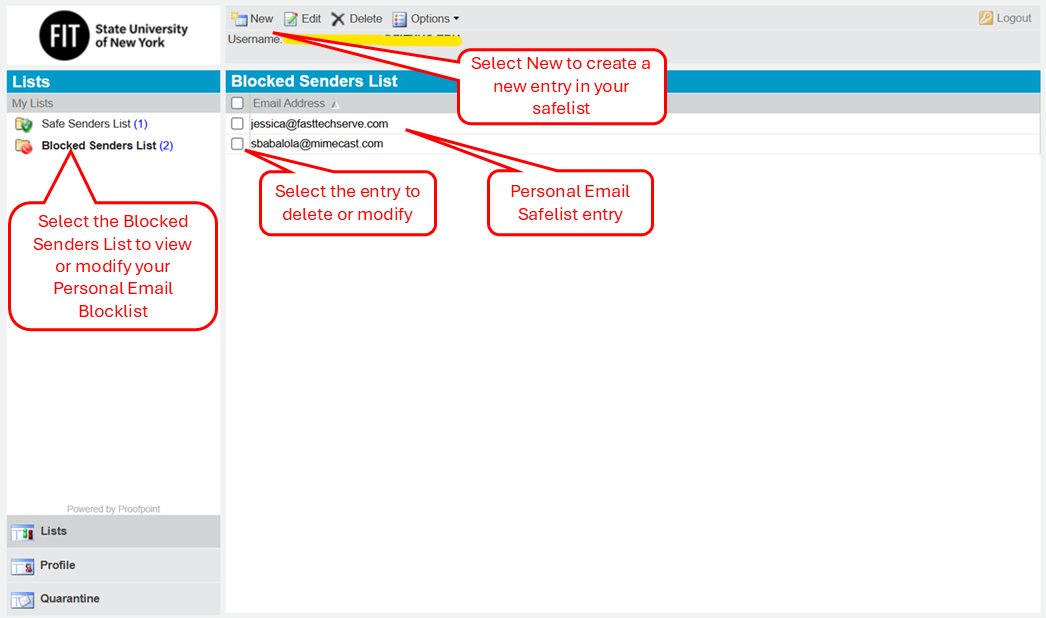
Safe Senders List: displays the list of email addresses that are always allowed to reach your inbox.
Blocked Senders List: displays the list of email addresses that are blocked from reaching your inbox.
You can view or modify your blocked senders from here.
- New: allows you to create a new entry in your safe senders list.
- Edit/Delete Entry: select an existing email entry to modify or remove it from the list.
- Email Entries: shows the list of email addresses added to your personal safelist.
Additional FAQs
2. FIT Email Warning Tags
FIT has deployed Proofpoint, a leading email security vendor, to provide both spam filtering and email protection. As an additional effort to protect FIT users, FIT has deployed a feature called Email Warning Tags. Email Warning Tags will notify you when an email is sent that matches one of the parameters listed below. This notification alerts you to the various warnings contained within the tag.
Personally identifiable information, if obtained, can cause, among other things, financial and reputational damage to FIT, a Student, Faculty and Staff. Phishing attacks often include malicious attachments or links in an email or may ask you to reply, call, or text someone.
As a result, emails with an attached tag should be approached cautiously.
Tag Example:
The tag is added to the top of a message’s body. The specific message for each tag is displayed to the recipient, along with a link to further information. The table below illustrates the Email Warning Tags you may see in your messages:
|
Warning Tag |
Explanation |
|
This Message Is From an External Sender This message came from outside your organization. |
This message was sent from a sender outside your organization. Look at the sender’s address to decide if it is safe to open. |
|
This Message Is From an Untrusted Sender You have not previously corresponded with this sender. |
This message was sent from a sender with whom you have not previously corresponded. Look at the sender’s address to decide if it is safe to open. |
|
Be Careful With This Message This message may contain links to a fake website. |
This message has a URL or link in it that can potentially cause harm to your computer or your network. Look carefully at the URL before you click it. |
|
Be Careful With This Message The sender may be an impostor. |
This message is potentially from someone impersonating someone you know. Look carefully at the sender’s address to decide if it is safe to open. |
|
Be Careful With This Message The sender’s email domain has been active for a short period of time and could be unsafe. |
The sender’s email domain has been active for a short time, and it could contain a malicious payload. |
|
Be Careful With This Message The sender’s identity could not be verified and someone may be impersonating the sender. |
This message is from a sender whose identity could not be verified and someone may be impersonating the sender. |
|
This Message May Be Unsafe Please verify with the sender offline and avoid replying with sensitive information, clicking links, or downloading attachments. |
This message contains suspicious elements but did not meet the threshold to block. Caution should be taken when interacting with this message. |
3. FIT URL Defense and Attachment Defense
In addition to scanning for potentially malicious senders, URL Defense and Attachment Defense scans every link (URL) and attachment that is sent to your mailbox for phishing or malware. URL Defense rewrites all URLs prepending https://urldefense.com/ to protect you in case a website is determined to be malicious after you have already received the message. The link is evaluated each time you click it to ensure it is considered safe. To learn more about the URL Defense scanning technology, watch Proofpoint’s URL Defense overview video.
Please continue to exercise caution when clicking any links in emails, especially from unknown senders. URL Defense is the second layer of protection against malicious emails, but scammers are continually devising new schemes to slip through security measures.
- If the link is deemed safe, you will be redirected to the URL.
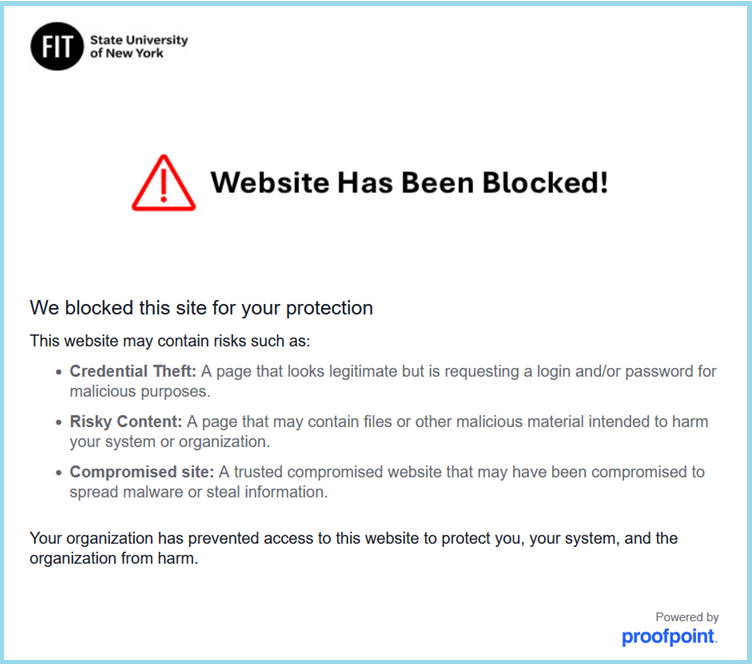
- If the link is found to be malicious, you will see the following notification in your browser:
URL Decoder
If you would like to know what the original URL (link) looks like without the URL Defense, you can use the decoder tool below to obtain the unaltered link you receive in an email message.
Copy and paste the URL from your email into the decoder:
URL Defense FAQs
About the vendor – Proofpoint
Proofpoint is a vendor that provides email security products and services, serving as a security gatekeeper for FIT email servers. The product inspects many message attributes and currently has a high success rate in detecting spam and malicious emails. Once examined, legitimate messages are routed to the recipient’s mailbox, while Proofpoint quarantines suspected spam and malicious emails.